Generate Reports
Remediation Details Report
The Remediation Details Report provides the details of the remediation request such as who initiated the request, whether the request was to change or remove access, any specifics related to the permissions that should be added or removed, and so on. If your System Configuration settings allow, this report is automatically attached to the email notifications that get sent to the Provisioning Team or Provision Engineer. You can manually generate this report by completing the following steps:
-
On the Change Management Taskboard, select a request within the list. The request details page appears.
-
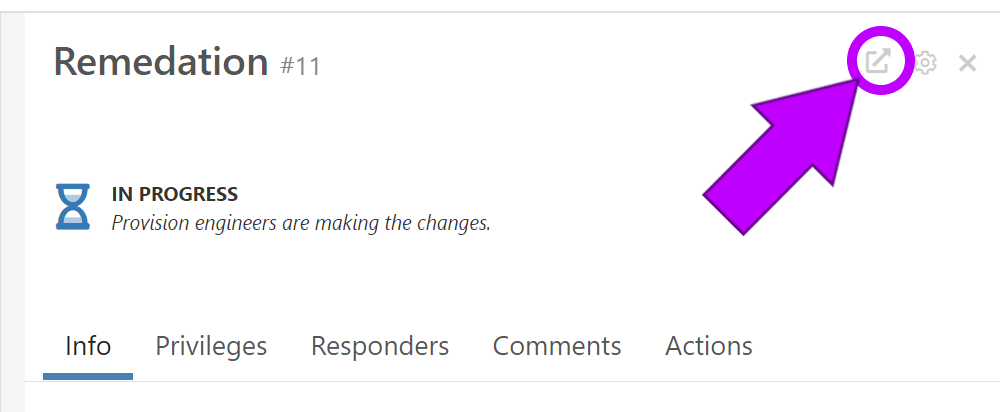
Select
 in the upper right corner of the details pane (see picture below).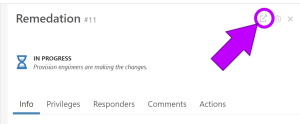
-
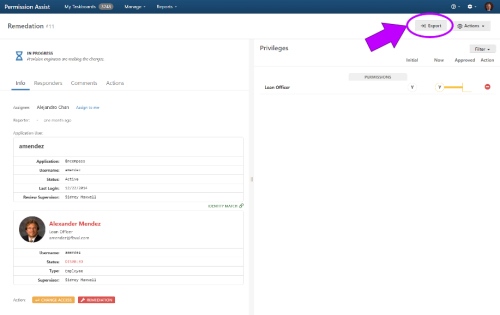
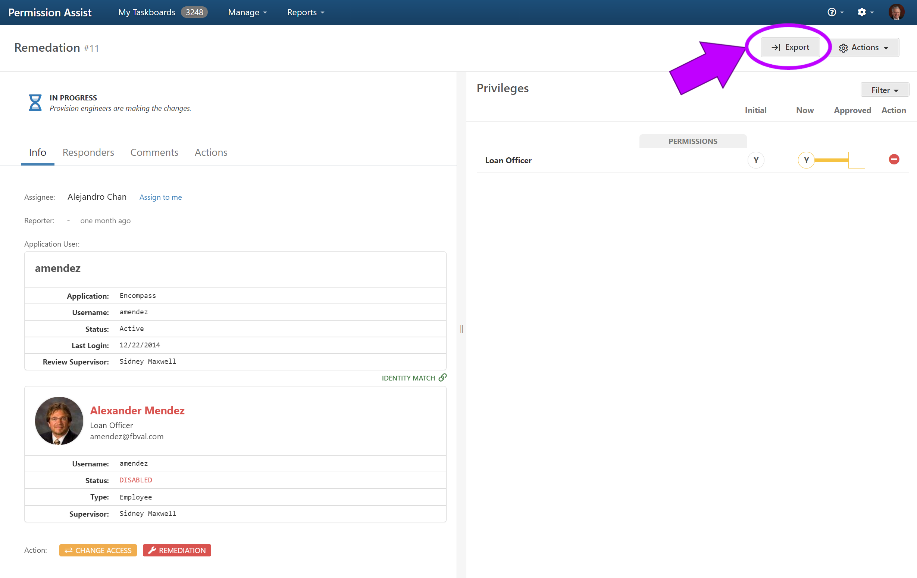
The Remediation Request opens in a new tab. Select the Export button in the upper right corner of the page (see picture below).
A reviewer can also generate this report by completing the following steps:
-
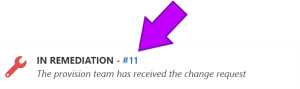
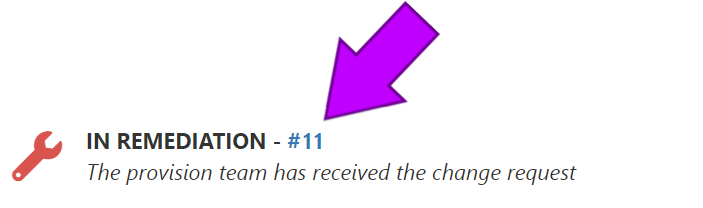
Select the numbered link next to the status of the review item within the Review Items Taskboard (see picture below).
-
The Remediation Request opens in a new tab. Select the Export button in the upper right corner of the page.
Remediated Report
The Remediated Report is available to Security Team members or anyone who is part of the Reporting Only group within the System Configuration > System Authentication area.
This report provides a list of all requests that have been remediated items within the review along with all comments and actions associated with the request. It is usually generated after a review is completed; however, it can be generated at any point after a review has started.
This report is available either within the Reports tab of the review or within the Reports > Reviews area.